Free Online Winter Photo Editor for Crisp Snow Aesthetics

Give winter photos crisp snow, warm skin tones and a touch of falling flakes. Shape the look with adjustable snow effects, white balance and HSL, from quiet forest paths to portraits under streetlights.

Free · No sign-up · No watermark

Start with a flat winter portrait and blue snow shadows
Create crisp white snow and warm skin with a winter filter
BeforeAfter

How Does OldRoll Perfect Your Snow Photos?

Shape a believable snow aesthetic with a snow photo editor that brings falling flakes, clean whites and warm portrait tones together. Choose how much texture and glow each scene needs.

View an outdoor winter portrait before adding snowfall
Add falling snow with a natural sense of foreground depth
BeforeAfter

Add Falling Snow with a Natural Sense of Depth

Add snowfall with a sense of depth using 9 snow effects and adjustable overlay intensity. Choose a snow filter that suits the scene, then ease back the strength so the flakes complement the foreground and background. A light layer leaves faces and coat details easy to see. A stronger one gives an open street or forest path a fuller snowfall look.

Keep snow crisp white while preserving warm portrait tones

Keep Snow Crisp White and Skin Tones Warm

Bring snow back to a crisp white with adjustable snow white balance, using temperature and tint, then refine the color with HSL. Lower blue and cyan saturation to soften blue snow shadows, and tune orange tones separately for warm skin and knitwear. Adjust exposure, brightness, shadows and temperature to keep the background cool while giving your subject a healthy, natural warmth.

Give winter streetlights red halation and a grainy film finish

Give Winter Light a Grainy Film Finish

Give winter light a 35mm-inspired finish with adjustable grain amount and red halation. Keep the texture light across clear skies, or build a more noticeable film grain finish for dusk portraits. Red glow around bright snow, streetlamps or low winter sun adds an analog feel. Keep it subtle when small highlight details matter.

Create a retro flash portrait with softly glowing snowflakes

Capture the Retro Flash Look on Snowy Nights

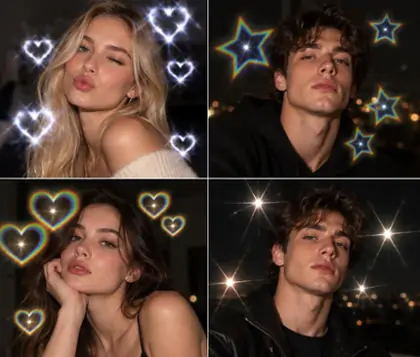
Bring the night-flash look to your winter photos with disposable camera flash effects. A bright subject, quick falloff toward darker edges and a cool vignette create that compact-camera mood. Add a soft glow filter for a diffusion-inspired finish, letting bright flakes and Christmas lights bloom while easing digital sharpness.

Which Winter Aesthetics Suit Your Photos?

Match your winter photo filter to the light already in the frame. Try amber cabin warmth, bold street flash, a quiet snowy landscape or the rich colors of a Christmas gathering.

Warm a fireside cabin portrait beside a snowy window

Build a cozy winter aesthetic around deep wood browns, amber firelight and the texture of a knitted sweater. Keep the view through the window cool, then warm the indoor tones and add gentle grain. Hot cocoa, a fireside portrait or a quiet cabin morning will feel inviting without turning every white surface yellow.

How to Create a Winter Filter Look Online

  1. Step 1: Upload Your Photo

    Upload a portrait, a cabin moment or a snowy landscape to OldRoll. Choose a clear original with visible highlight detail so you have a good starting point for your winter edit.

  2. Step 2: Build Your Winter Look

    Choose a winter-style filter, layer on snow and adjust its intensity. Refine white balance, HSL and grain, then add halation or soft glow to suit the light in your photo.

  3. Step 3: Download in HD

    Download your finished photo in HD at its original resolution, with no extra export compression. Save it for a winter travel album, a social post or a digital holiday card.

Upload a photo, create a winter look and download in HD

Winter Photo Edits, in Their Own Words

From fresh snowfall to fireside portraits, small adjustments can give each winter photo its own mood.

Emma R.

"I wanted a little snowfall around my coat, not a wall of white. Lowering the snow intensity gave my street portrait the soft winter feel I had in mind."

Noah T.

"The snow in my ski photos looked too blue. White balance and a small blue saturation adjustment helped the slopes look cleaner while the mountain shadows stayed cool."

Sofia M.

"My sweater and skin looked warmer after I adjusted the orange tones. I could keep the wintry color in the background without making the whole portrait look cold."

Liam K.

"A touch of grain gave our cabin photos the texture I wanted. I kept it low so the wood and the detail in our knitted blankets still showed through."

Chloe W.

"I liked the red halation around the streetlamps in my evening photo. It gave the bright spots a warm edge that worked with the darker snow-covered street."

Oliver B.

"The disposable-camera look worked well for my nighttime outfit shot. The bright center and darker edges brought the attention back to my face and jacket."

Maya S.

"I used a little glow on our Christmas tree photo. The lights felt softer, and the red decorations still had enough color for the holiday card I was making."

Ethan P.

"My hiking photo needed very little snow added. Cooling the shadows and keeping the white areas bright did most of the work for the quiet landscape I wanted."

Grace L.

"The strongest snow layer was too busy for my close-up at first. Turning it down made the flakes less distracting and kept my eyes clear in the final photo."

Lucas D.

"I spent a few tries balancing glow and grain on a night shot. A lighter amount of each looked best, especially around the small lights in the distance."

Winter Filter FAQs

How do I add snow to a photo without hiding the subject?

Choose one of the 9 snow effects and start with low overlay intensity. In a snow editor, a lighter layer often suits close-up portraits. Increase the strength for wider scenes with room around the subject.

How can I make blue snow look white without losing the winter mood?

Adjust temperature and tint to balance the snow, then lower blue and cyan saturation in HSL as needed. Keep some cool color in the shadows, and adjust orange tones separately to warm up skin or clothing.

How do I get the look of winter presets in OldRoll?

Start with a filter close to your preferred mood, then refine snow, temperature, HSL and grain for your photo. Use cool tones for open landscapes or warmer tones for cabin scenes with wood and firelight.

What photos work best with a winter photo editor?

Snowy paths, outdoor portraits, knitwear, cabin interiors and holiday lights offer useful starting points. Match the effect to the existing setting and light so the added snowfall feels at home in the frame.

How do I create a retro flash look for winter night photos?

Start with a night portrait that has a darker background. Use a disposable-camera look, a cool vignette and grain, then add restrained glow around bright flakes or distant lights to soften the finish.

Is the winter filter free, and can I download in HD?

Yes. You can edit winter photos online for free with OldRoll and download at the original resolution, with no extra export compression. Start with a clear source photo for the best detail in the result.

More Looks for Your Winter Photo Collection