Free Black and White Filter Online for Fine-Art Photos

Turn color photos into expressive black and white images with OldRoll. Start with a one-click filter, then shape tonal contrast, channel brightness, skin, grain and detail for portraits, streets, architecture and more.

Free · No sign-up · No watermark

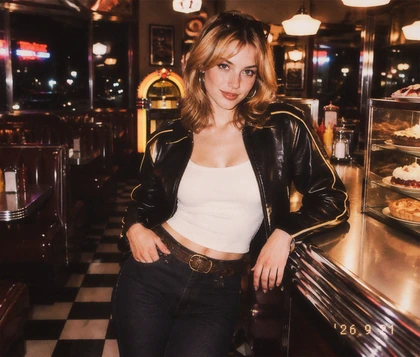
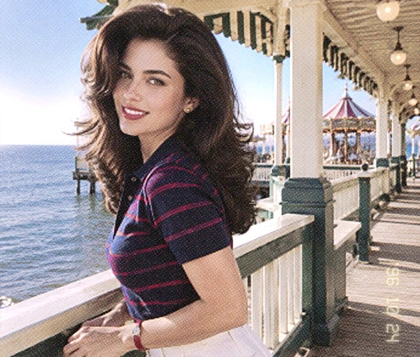
View a color portrait before monochrome conversion
Create a fine-art black and white portrait with tonal depth
BeforeAfter

Why Use OldRoll for Black and White Photos?

OldRoll goes beyond basic desaturation by giving you a strong monochrome starting point and the controls to shape how every tone reads. Create a quick conversion or refine the light, channels and texture until the photograph carries the depth and mood you intended.

Convert a color photo to black and white in one click

Convert Color Photos to B&W in One Click

Turn a color photo into a complete black and white look with one Camera or Filter selection. OldRoll gives portraits, street shots and landscapes an immediate monochrome direction without making manual adjustments a requirement. Use Intensity to make the conversion bold or restrained. The ready-made result works on its own, while Light, Color and Texture controls remain available when you want a more deliberate finish.

Edit color channel brightness in a monochrome photo

Shape Each Color Channel in Monochrome

Control how colors from the original photo translate into gray instead of accepting one fixed conversion. Adjust red, green and blue channel brightness to separate the subject, background and important details. Lift the red channel for brighter-looking skin in a portrait, or darken blue tones to give skies and clouds more drama. Targeted control helps one black and white photo filter adapt to very different images.

Add grain detail and vignette to a black and white photo

Build Texture with Grain, Detail and Vignette

Give the monochrome image a finish that suits its story. Add fine Grain for a polished portrait, choose a rougher texture for street photography, strengthen Detail on architecture or guide the eye inward with Vignette. Pair those controls with high-contrast, low-contrast, vintage or film-inspired looks. A film filter direction can add analog character, while Intensity keeps the treatment from overpowering the photograph.

Enhance tonal depth detail and skin in monochrome

Keep Tonal Depth, Fine Detail and Clear Skin

Create dimensional black and white photos instead of flattening every color into the same muddy gray. Exposure, Highlights, Shadows, Black level, White level and Curves help you build separation across dark, middle and bright tones. Refine contrast without automatically sacrificing clouds, fabric folds or facial texture. Channel and light controls also let you lift skin and balance the surrounding tones for cleaner, more expressive portraits.

Where Does Black and White Photography Work Best?

Removing color changes what the eye notices first. These five scenarios show how OldRoll can emphasize light, geometry, expression or texture, and which controls help each photograph feel intentional rather than simply desaturated.

Create a gritty black and white street photograph

Use a black and white filter for street photography to make hard sunlight, wet pavement, crosswalks and passing figures feel more graphic. Stronger contrast and visible Grain can give the scene grit, while Shadows and Black level keep dark areas purposeful rather than empty.

How to Convert a Photo to Black and White Online

  1. Step 1: Upload Your Photo

    Choose a portrait, street scene, building, landscape or everyday snapshot from your device. A well-exposed source makes it easier to judge tonal separation and texture.

  2. Step 2: Apply and Refine the Look

    Choose a Camera or Filter, then set its Intensity. Adjust channels, light, contrast, Grain, Detail or Vignette, and add a date stamp or sticker if it supports the story.

  3. Step 3: Export in HD

    Review highlights, shadows, skin and fine texture at full size. Export the finished black and white photo in high definition for social posts, albums, layouts or prints.

Use three steps to create and export a monochrome photo

More Ways to Shape Your OldRoll Photo

Why Creators Use OldRoll for Black and White Photos

Creators use OldRoll to convert photos quickly, then refine channels, contrast and texture for monochrome images that suit portraits, street scenes, architecture, landscapes and social posts.

Emily R.

"The one-click filter gave me a strong starting point for a wedding portrait. Lifting the red channel made the skin brighter without making the entire photo pale."

Daniel M.

"I converted a rainy street photo and added a rougher Grain texture. The reflections and shadows felt more dramatic, but the people were still easy to read."

Olivia T.

"The channel controls changed how I approach black and white landscapes. Darkening the blue tones gave the clouds much more presence over the mountains."

Noah K.

"There are more tonal controls than I expected. Curves took a little practice, but the ready-made Filter and Intensity control made the first result easy."

Sophia L.

"My architecture photos looked cleaner once the distracting colors were gone. Detail and Highlights helped the concrete, windows and shadows stay separate."

Marcus P.

"I wanted a softer black and white effect for a café carousel. Lower contrast and a subtle Vignette gave the full set a calm, consistent mood."

Chloe W.

"I usually get muddy skin from quick black and white apps. Adjusting the red channel and Shadows gave my portrait a cleaner, more flattering balance."

Ethan B.

"The high-contrast look was strong at first, so I lowered the Intensity and lifted the Shadows. I liked being able to keep the drama without losing the jacket texture."

Grace C.

"I used the B&W photo editor for waves and rocks. Fine Grain added character, while the Detail control kept the water texture from disappearing."

Liam D.

"I needed a free black and white photo editor online for a poster image. The HD export kept the final result useful for both the layout and social previews."

Reviews from: Google Play, App Store, and more.

FAQs About the Black and White Filter

What does a black and white filter do?

A black and white filter translates color into shades of gray so light, shape, expression and texture become more prominent. OldRoll also lets you adjust tonal contrast, channels and texture instead of stopping at basic desaturation.

How to make a black and white photo online?

To make a photo black and white, upload the image to OldRoll, choose a Camera or Filter look and set its Intensity. Then refine channels, light, Grain, Detail and Vignette before exporting the completed photo in HD.

Are B&W, BNW and white and black filters the same?

Yes. A white and black filter, B&W filters and a BNW filter all describe a black and white or monochrome conversion. These terms usually refer to removing color and reshaping the image through a controlled range of gray tones.

How do I keep detail in a black and white photo?

Watch the brightest highlights and deepest shadows instead of increasing contrast alone. In OldRoll, use Highlights, Shadows, Black level, White level, Curves and Detail to keep important textures visible across the tonal range.

Can I adjust skin tones in a B&W portrait?

Yes. The original skin color still influences its brightness after conversion. Adjusting red-channel brightness, Exposure and Shadows can make skin read more clearly while preserving separation from hair, clothing and the background.

Is OldRoll's black and white photo editor free online?

Yes. OldRoll works as a free black and white photo maker online in your browser. Apply a ready-made look, customize channels, light and texture, then export the finished photo in high definition without installing desktop software.