Free Film Filter Online for Authentic Analog Photo Looks

Make digital photos look like film in one click with OldRoll. Start with a film-stock-inspired Camera or Filter preset, then refine grain, color, glow and date details before saving the result in its original resolution.

Free · No sign-up · No watermark

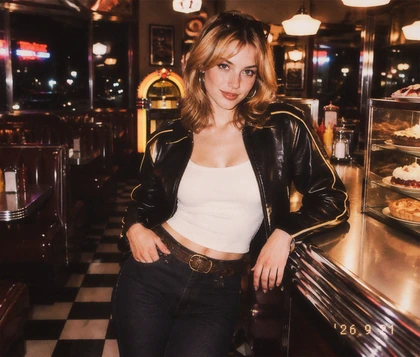
View a clean digital portrait before the film edit
Create an analog portrait with film color grain and glow
BeforeAfter

Why Use OldRoll to Make Photos Look Like Film?

OldRoll combines ready-made film character with the controls that keep an edit personal. Begin with a complete analog direction, then decide how much grain, color shift, glow and imperfection the photograph needs—without turning a simple film effect into a complicated color-grading project.

Create film-stock-inspired Camera and Filter looks

Start with Film-Stock-Inspired Looks in One Click

Apply a camera film effect with one Camera or Filter selection instead of building it slider by slider. OldRoll presets draw on the warm color, cool greens, soft highlights and instant-photo character associated with classic film. Use Kodak Gold 200, Portra 400, Fujifilm Superia and Polaroid as visual references for golden nostalgia, flattering portrait color, moodier greens or instant-film charm. Choose a direction, then refine it for free.

An ordinary portrait taken with a mobile phone
Edit film grain type intensity and particle size
BeforeAfter

Build Organic Grain Instead of Digital Noise

Give clean phone photos the irregular texture people expect from a convincing film grain filter. Choose the Grain type, control its intensity and adjust particle size for a fine portrait finish or a rougher street and travel look. Pair Grain with Detail, Vignette, Blur or a 35mm filter direction. The result is analog texture that supports the light, color and subject instead of covering the frame with flat digital noise.

Enhance natural portrait skin inside a warm film effect

Keep Skin Tones Natural inside the Film Mood

Add a rich film photo effect without leaving faces gray, muddy or green. OldRoll presets balance their vintage palette with natural-looking skin, helping portraits retain warmth while the scene takes on analog character. Use Temperature, Tint, Highlights and Shadows, or refine orange and red tones through HSL. Curves and Intensity let you keep the vintage film effect while choosing how soft, warm or contrast-rich the portrait feels.

Add light leaks halation spots and a custom date stamp

Add Light Leaks, Halation and Date Details

Finish the old film filter with imperfections that make a frame feel found rather than freshly processed. Adjust a Light Leak, add Halation around bright areas or layer a Spot effect for controllable bokeh and flare-like glow. A customizable date stamp anchors travel photos, party snapshots and everyday scenes in time. Combine these details lightly for believable character or push them further for a stylized lo-fi edit.

Which Film Aesthetic Fits Your Story?

The best film filter depends on the light, subject and feeling you want to preserve. These four scenarios pair familiar photographic moments with a practical color and texture direction, helping you choose a look that supports the story instead of covering it.

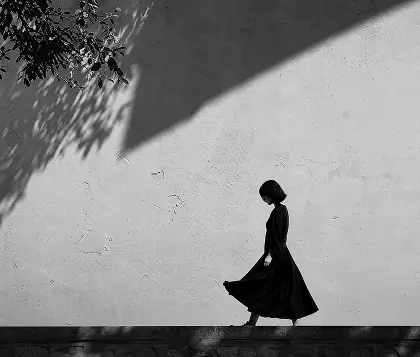
Transform street photos with cool color contrast and grain

Turn ordinary walks, storefronts and late-night streets into cinematic memories. A cooler film camera filter can deepen neon and shade, while stronger contrast and visible Grain give hard afternoon light, wet pavement or café windows the honest grit of an old camera filter.

How to Make Photos Look Like Film Online

  1. Step 1: Upload Your Photo

    Choose a portrait, street photo, travel scene, party snapshot or everyday image from your device. OldRoll runs online, so you can begin without installing desktop editing software.

  2. Step 2: Apply and Tweak the Film Effect

    Choose a Film Camera look or Filter preset, then adjust Intensity, light, color, Curves and Grain. Add a Light Leak, Halation, Spot overlay, frame or custom date stamp when it supports the mood.

  3. Step 3: Export in the Original Resolution

    Compare the edit with the original and check skin, highlights and texture at full size. Save the finished film-style photo in its original resolution without extra export compression.

Use three steps to apply refine and save a film look

More Ways to Shape Your OldRoll Photo

Why Creators Use OldRoll for Film-Style Photos

Creators use OldRoll to apply a complete analog direction quickly, then refine grain, color, light effects and date details until each portrait, trip or everyday snapshot feels personal.

Emma R.

"The preset gave my beach photos warm film color immediately. I lowered the Grain a little and the whole set felt nostalgic without looking overly edited."

Lucas M.

"I wanted a film photo editor for night streets. The cooler color, stronger shadows and subtle Spot effect made the neon feel much more cinematic."

Olivia T.

"My portrait kept a natural skin tone even after I chose a warm vintage film filter. A small Curves adjustment was enough to get the softer contrast I wanted."

Noah K.

"There are plenty of texture controls, so it took a few minutes to find my favorite balance. Starting from a ready-made Camera look made the process much easier."

Sofia L.

"I used a fine Grain size for a couples photo and added just a little Halation around the sunset. The result felt soft and photographic rather than like a color overlay."

Ethan P.

"The date stamp completed my travel carousel. I liked that I could keep it subtle and save the final photos in their original resolution."

Mia C.

"I tried the same film effect on café shots, outfits and street details. Keeping the color direction consistent made my Instagram carousel feel much more intentional."

Daniel W.

"The stronger Light Leaks were too much for my portrait, but lowering the intensity gave me a believable edge glow without distracting from the face."

Grace H.

"Grain type and size made a bigger difference than I expected. I could use a rougher texture for street photos and a cleaner finish for people."

Liam B.

"I needed a free film filter online for a poster photo. OldRoll gave me the analog texture I wanted and the original-resolution save kept the image useful for the layout."

Reviews from: Google Play, App Store, and more.

FAQs About Film Filters

What is a film filter?

An analog film filter gives a digital photo characteristics associated with analog photography, such as film-stock-inspired color, softer highlight transitions, organic Grain, Vignette, Halation, Light Leaks or date details.

How do I make digital photos look like film?

Upload the photo to OldRoll and choose a Film Camera look or Filter preset. Then refine Intensity, Curves, color, Grain and Detail before adding optional light effects, a frame or date stamp and saving the completed image.

Are OldRoll's film filters based on real film stocks?

OldRoll's Camera and Filter looks draw inspiration from classic cameras and analog color palettes. Kodak Gold 200, Portra 400 or Fujifilm Superia can help describe a visual direction, while each OldRoll preset keeps its own name and tuned result.

Can I adjust the amount and size of film grain?

Yes. OldRoll lets you choose a Grain type and adjust both its intensity and particle size. Use finer grain for portraits and polished travel photos, or a rougher treatment for a gritty street or retro 35mm film edit.

Will a film effect make skin look muddy or green?

OldRoll's film presets are tuned to keep skin tones natural within their vintage color direction. You can also refine Temperature, Tint, Highlights, Shadows, HSL, Curves and Intensity when a portrait needs a warmer or more balanced finish.

Is OldRoll's film filter free, and does it reduce image quality?

OldRoll is a free online film photo editor, and all current editing features are available without charge. The finished photo can be saved in its original resolution without extra export compression. Only the visual effects you choose change the image.