Free Online DigicamFX Editor for Y2K Photos

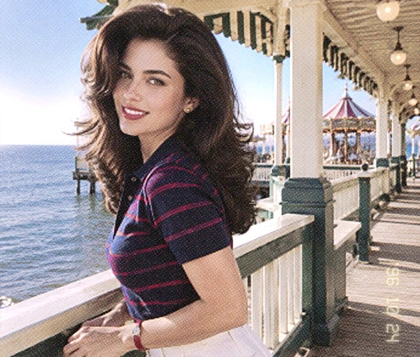
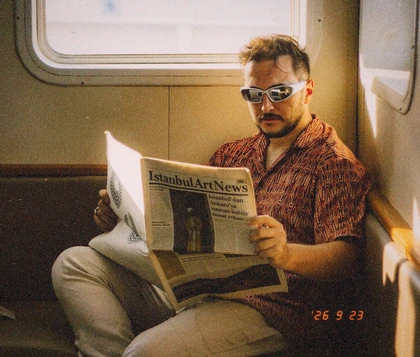
Give any photo the raw, flash-lit character of an early digital camera. OldRoll combines camera-inspired looks with adjustable color, light and texture, so your DigicamFX result feels personal instead of overprocessed.

Free · No sign-up · No watermark

Compare a clean phone photo before the digicam edit
Apply a flash-lit DigicamFX look with cool color and grain
BeforeAfter
View a sharp phone portrait before digicam styling
Create cool CCD color with grain and blooming highlights
BeforeAfter

How Does OldRoll Recreate the Digicam Look?

OldRoll rebuilds the digital camera filter look through three connected adjustments instead of relying on one flat color overlay. · Light: Exposure, Highlights, Shadows, Black level and White level shape hard flash and darker backgrounds. · Color: Temperature, Tint, HSL and Curves create cool CCD-style color while keeping skin readable. · Texture: Grain, Soft light, Detail and Halation add low-fi texture and blooming highlights.

More Than a Filter: Shape Every Part of the Look

A Camera look sets the visual direction, then OldRoll gives you separate control over its strength, color, texture and finishing details. Build a recognizable style without making every source photo look identical.

Tune camera intensity, light, color and texture controls

Tune Every Layer of the Camera Look

Start with a Camera or Filter that matches your photo, then set its Intensity instead of accepting a fixed result. OldRoll gives each digicam editor project a flexible visual starting point. Refine Exposure, Highlights, Temperature, Tint, HSL and Curves, then shape Grain, Blur, Vignette, Halation and Detail. You control how polished, hazy, colorful or low-fi the final shot becomes.

Add an orange date stamp and aesthetic stickers

Add Date Stamps and Playful Details

Place a customizable orange date stamp on the shot, then choose from 150+ aesthetic stickers to give the image a more personal time-and-place. These details add the playful context people look for in Y2K filters online, while the Camera look keeps the result grounded in digicam photography. Use them selectively so the subject still leads the frame.

Export a finished DigicamFX photo in high definition

Create Online for Free and Export in HD

Create the complete look in your browser with a 100% free online camera filter, from the first Camera choice to the final texture adjustment. OldRoll exports the finished photo in high definition without losing quality, so it is ready for social posts, profile pictures, digital albums or prints. No desktop install is needed.

Which Digicam Camera Matches Your Mood?

Explore six camera-inspired directions, from gritty street contrast and playful toy-camera color to cool Y2K flash and pixel-art nostalgia. Pick the character that fits your photo, then fine-tune it in the editor.

Apply the GRX look to a moody street portrait

GRX: Ricoh-Inspired Street Contrast

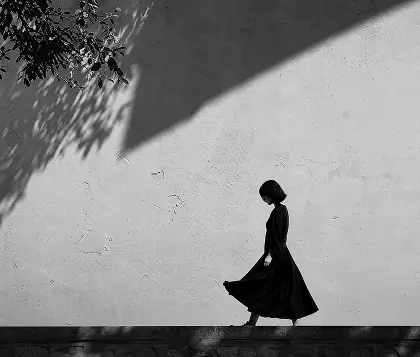
Inspired by the Ricoh GR series, GRX favors rich contrast, deeper shadows and an understated street-photography mood. Use it for rain-darkened city scenes, candid portraits and OOTD photos that need a sharp, grounded sense of place.

Give a bright picnic photo playful TOY F color

TOY F: Playful Plastic-Camera Color

TOY F leans into plastic-camera nostalgia with vivid primary colors, soft distortion and a slight vignette. It suits sunny picnics, festivals, colorful objects and everyday moments that should feel playful rather than polished.

Create balanced OPS color for a café portrait

OPS: Olympus-Inspired CCD Balance

Inspired by classic Olympus CCD cameras, OPS balances clean retro color with gentle warmth and soft highlight bloom. Choose it for café portraits, vintage interiors and still-life photos that call for a calm, editorial finish.

Turn a mirror selfie into a hazy 4S snapshot

4S: The iPhone 4S-Era Snapshot

4S revisits the softer, lower-definition character of the iPhone 4S era. Its hazy early-social-media mood fits mirror selfies, dorm-room photos and casual group shots that should feel spontaneous, familiar and unfiltered.

Add cool Jelly flash to a night-out portrait

Jelly: Cool-Toned Y2K Flash

Jelly brings cool cyan color and flash-heavy party energy to portraits. It works especially well for nights out, rave scenes and direct-flash selfies where bright skin, dark backgrounds and dramatic contrast make the moment feel immediate.

Transform a profile photo with Pix pixel texture

Pix: Game Boy Camera Pixel Energy

Drawing on the Game Boy Camera look, Pix turns smooth photos into a bold, pixel-led statement with a compact retro palette. Try it on profile pictures, collectibles or cyber-styled street scenes that benefit from obvious digital texture.

How to Use the Digicam Filter Online

  1. Step 1: Upload Your Photo

    Choose a portrait, selfie, street photo or everyday snapshot from your device. A clear subject gives you more room to judge how each Camera look changes color, contrast and texture.

  2. Step 2: Choose a Camera or Filter

    Open Camera or Filter and preview the direction that fits your image. Adjust Intensity, light, color and texture until the digicam effect feels natural to the scene.

  3. Step 3: Decorate and Export

    Add a date stamp or stickers when they support the mood, review the final image and export it in high definition without losing the character you created.

Follow the complete OldRoll digicam editing workflow

More Ways to Finish Your OldRoll Edit

Why Creators Use OldRoll for Digicam Photos

Creators use OldRoll to soften modern phone photos, explore different camera moods and control how much grain, flash contrast or Y2K detail appears in the finished image.

Emily R.

"GRX gave my rainy street photos the contrast I wanted without making them look like the same preset I see everywhere. I could still soften the grain and lift the shadows myself."

Marcus T.

"Jelly made my party pictures feel like compact-camera shots from the early 2000s. The cool color and flash look worked especially well on portraits."

Chloe M.

"I like that the filter intensity is adjustable. I can keep the DigicamFX look subtle for everyday photos or push it further for a full Y2K post."

Daniel K.

"The camera choices are more varied than I expected, and the color tools are genuinely useful. I needed a few minutes to learn HSL, but the simpler sliders were easy."

Sofia L.

"TOY F turned a bright picnic set into something playful and imperfect. The date stamp and stickers helped the photos feel like one complete summer album."

Jordan P.

"I used 4S on old friend-group photos and loved the early Instagram mood. It softened the overly clean phone-camera finish without hiding anyone's face."

Maya C.

"The grain and halation controls are my favorite part. I can build a softer glow around lights without covering the small details in my night photos."

Ethan B.

"Pix is a strong look, so it will not suit every photo, but it made an excellent profile image. Being able to switch cameras before exporting made experimentation easy."

Olivia N.

"OPS gave my café portraits warm, balanced color without turning everything orange. The final HD image still looked clean when I used it in a digital scrapbook."

Noah S.

"I came for a free digicam filter and stayed for the adjustments. Changing contrast, temperature and vignette made the result feel designed for my photo instead of copied from a template."

Reviews from: Google Play, App Store, and more.

FAQs About the Digicam Filter

What does a digicam filter do to a photo?

A digicam filter gives a modern photo the color, contrast and texture associated with early digital cameras. Depending on the Camera look, that can include cooler tones, direct-flash contrast, softer highlights, grain, haze or pixel-led detail.

Can I create a digicam online from an existing photo?

Yes. Upload a photo already saved on your device, choose a Camera or Filter and continue editing online. You do not need to recreate the moment with a separate physical camera to explore a digicam online.

Is OldRoll's digicam filter free to use online?

Yes. OldRoll provides a 100% free online digicam filter that runs in your browser. You can choose a look, adjust the result and prepare the finished photo without installing a separate desktop editor.

Can I control how strong the camera filter looks?

Yes. Use Intensity to make the selected camera filter stronger or more restrained. You can then adjust light, color and texture separately, which helps the same look fit portraits, night scenes and brighter daytime photos.

Which camera effect works best for night photos?

Jelly is a useful starting point for cool-toned flash selfies, parties and dark backgrounds. GRX can suit moodier street scenes, while Grain, Halation, Shadows and Black level help you refine how night light is rendered.

Will my edited digicam photo export in HD?

Yes. OldRoll supports high-definition export without losing image quality, so the finished photo can remain clear for social posts, profile images, digital albums and prints.