Grain Filter: Add Film Grain & Noise to Photos Online for Free

Give digital photos a textured film finish with OldRoll's free online grain filter. Explore 8 grain types for portraits, travel shots and retro snapshots, with no sign-ups or watermarks.

Free · No sign-up · No watermark

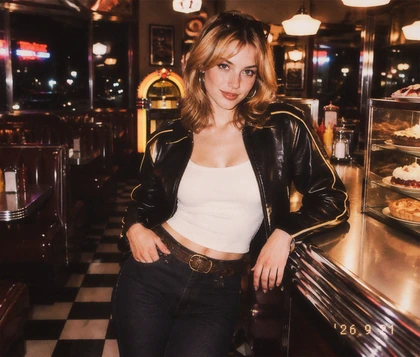
Compare a smooth portrait before adding film grain
Create a textured portrait with a film grain effect
BeforeAfter

Why Use OldRoll to Add Film Grain to Photos?

OldRoll combines ready-to-use grain textures with control over their strength, light and color. Create a subtle film finish or a bolder grainy effect, then save the photo in its original resolution.

Apply a film grain effect to a digital portrait

Apply a Grain Effect Online for Free

Turn smooth digital photos into textured, film-inspired images with OldRoll's free online grain filter. Choose a Grain type to apply the effect directly to your photo, without downloading a separate overlay. From a casual phone snapshot to a studio portrait, you can add grain to a photo in your browser. No sign-up or desktop software stands between your original image and a more tactile finish.

Compare different grain types and adjust Grain Amount

Customize Your Grain and Noise Textures

Match the texture to your photo with 8 Grain types and adjustable Grain Amount. OldRoll lets you choose the grain character and control how strongly it appears, giving you more choice than a fixed grainy filter. A low amount suits a subtle film grain effect on portraits. Increasing it brings a more pronounced texture to flash photos and street scenes, so the same editor can serve different creative styles.

Enhance portrait grain with highlights and shadows

Balance Grain with Light and Skin Detail

Create a textured portrait with a natural-looking finish by balancing Grain Amount with your photo's light. OldRoll gives you control over texture strength, plus Highlights and Shadows to refine the overall tone. A lighter grain treatment adds atmosphere around skin and fabric, while deeper shadows give editorial portraits more depth. Together, these adjustments help the texture complement the face and expression.

Prepare an edited grainy photo in its original resolution

Download Grainy Photos in Full Resolution

Keep your photo's original resolution when you download a grainy edit from OldRoll. Your finished image saves without extra export compression or an added watermark, ready for a photo album or creative layout. Full-resolution export gives you the original image dimensions to work with for large photo placements. Carry the film grain texture from your edit into a travel book, portfolio or social post.

How Can OldRoll Complete Your Analog Look?

Combine grain with film-inspired color, richer shadows and vintage light effects in OldRoll. Shape the whole photo in one editor, from the texture on its surface to the color and light that set the mood.

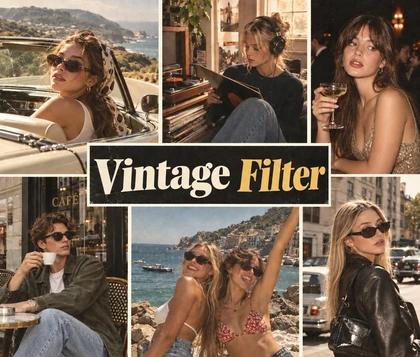
Apply warm cinematic color and film grain to a portrait

Film Color for Cinematic Photos

Give grainy photos a cinematic mood with OldRoll's Camera and Filter looks. A film-inspired color palette adds warm skin tones or muted color, pairing texture with a look suited to portraits and documentary-style shots.

Add vignette and shadow depth to a grainy portrait

Vignette for Depth and Focus

Draw attention to your subject with a gentle Vignette and richer shadows. OldRoll's Shadows and Black level controls help shape darker areas, giving grainy street shots and portraits a more dramatic sense of depth.

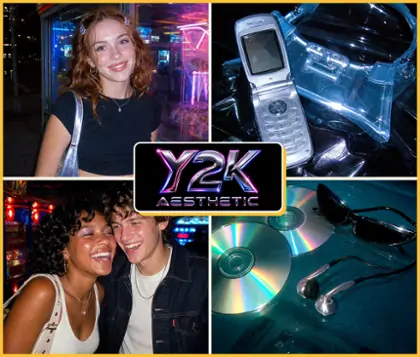
Add a light leak and grain for a nostalgic glow

Light Leaks for a Nostalgic Glow

Recreate the mood of a disposable-camera snapshot with grain and a warm light leak overlay. Choose a Light Leak type and intensity in OldRoll, then explore Soft light or Halation for a softer, glowing finish.

Which Grainy Photo Style Fits Your Story?

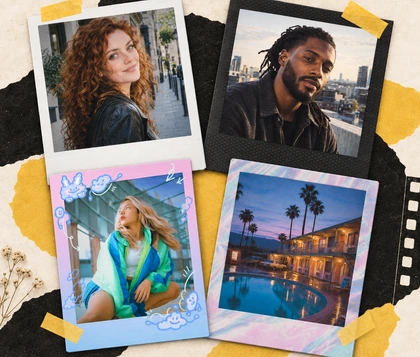
Use grain to give portraits an editorial finish, bring nostalgia to travel photos or add texture to a design. Each scene offers a different reason to choose a subtle or more pronounced effect.

Create an editorial portrait with subtle monochrome grain

Give portraits an editorial feel with a light grain treatment in OldRoll. Soft window light and simple backgrounds let the texture add atmosphere around the subject. Pair it with a black-and-white portrait look to emphasize expression, tonal contrast and fabric detail.

How to Add Film Grain to Your Photos

  1. Step 1: Upload Your Photo

    Open a photo from your device in OldRoll. Choose a portrait, travel shot or everyday snapshot as the starting point for your film-inspired edit in the browser.

  2. Step 2: Adjust and Fine-Tune

    Go to Adjust, then Texture and Grain. Pick a Grain type and move Grain Amount to set the strength. Refine the photo's light or color to complete your chosen look.

  3. Step 3: Download in Full Resolution

    Compare your grainy edit with the original, then download it in the original resolution. Your photo saves without an added watermark, ready to share or use in a layout.

Use three steps to add grain and save a photo

Grainy Looks for Everyday Photos

From subtle portrait texture to bolder flash photos, OldRoll offers room to find a personal grainy look. Color and light adjustments bring the edit together, with original-resolution export for the finished photo.

Avery M.

"I tried a few grain types on a window-lit portrait. A lower amount gave the background some texture without making the face feel too busy."

Jordan T.

"My street photos looked a little too smooth. Grain and warmer color gave them the travel-album feel I wanted, especially in the buildings and open sky."

Morgan L.

"I liked the stronger texture on our party shots. I turned it down on the darker pictures because they already had plenty of noise."

Riley S.

"Being able to compare 8 types on the same image helped. The first one I chose wasn't the one I ended up keeping."

Casey R.

"A little grain worked well with my black-and-white portrait. It gave the picture a magazine-like feel, especially against the plain studio background."

Taylor B.

"I wanted texture for a poster background. The heavier grain competed with the lettering, but a lighter amount gave it just enough character."

Jamie K.

"I paired a light leak with grain on a beach photo. Lowering the light effect gave it a lovely warmth, like a summer snapshot from an old album."

Alex P.

"It was useful to adjust grain, shadows and color in one place. I could keep the darker mood of the photo while still seeing the details in the coat."

Sam D.

"I didn't need to download a texture file or open another app. Choosing a type and adjusting the amount was enough for the finish I had in mind."

Quinn F.

"I wanted a film grain filter for a travel layout. Saving at the original resolution let me use the edited photo at the size I had planned."

FAQs About Grain Filters

What is the difference between film grain and digital noise?

Film grain is a texture associated with photographic film, while digital noise comes from a camera's sensor. A grain filter adds texture deliberately, giving digital photos a more tactile, film-inspired finish.

How do I add grain to photos without overdoing it?

Start with a low Grain Amount and increase it until the texture suits the picture. A lighter touch works well on faces and already noisy photos. Comparing with the original helps you find a comfortable balance.

What can I customize with OldRoll's online grain filter?

OldRoll offers 8 Grain types and a Grain Amount slider, so you can choose the texture and its strength. Highlights and Shadows adjust the photo's overall tone, giving you more ways to shape the finished look.

Does adding a grain filter reduce my photo's resolution?

No. OldRoll saves grainy photos in their original resolution without extra export compression. Grain changes the visible texture, while the original image dimensions remain available for your album or design.

Is OldRoll's grain filter free to use without a watermark?

Yes. OldRoll's grain filter is free online, with no sign-up required or watermark added to your download. You can choose a texture, adjust its strength and save your finished photo directly from the browser.

Can I add grain to black-and-white and color photos?

Yes. Grain works with both color and black-and-white looks in OldRoll. Pair it with warm film color for a nostalgic snapshot, or use monochrome tones to bring texture and contrast into an editorial portrait.

Explore More Photo Styles with OldRoll