Free Vintage Filter: Add Retro Effect to Photos Online

Try a vintage filter that suits your photo's story. With OldRoll, explore warm instant-film color, grainy 90s snapshots or cool early-digital tones, then shape the details for a portrait, trip or night out.

Free · No sign-up · No watermark

Compare a clear portrait before vintage editing
Create a vintage portrait with film color and fine grain
BeforeAfter

Which Vintage Photo Style Fits Your Photo?

A vintage filter can suggest many eras, materials and moods. Compare these four directions through the details you can actually see: color, contrast, texture, light and framing. Start with the one that suits your original photo, then refine it in OldRoll.

Create a warm instant-film portrait with a paper-print mood

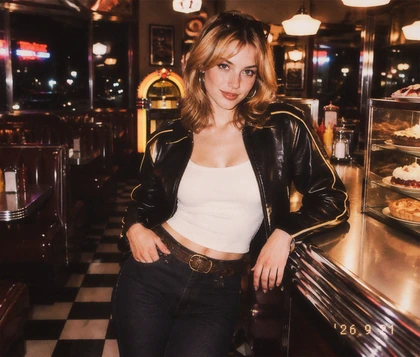
An instant-film-inspired vintage photo filter pairs warm highlights, softer contrast and a paper-print feel with portraits or sunlit road trips. Fine Grain and Vignette add texture while skin stays recognizable. For a frame you might keep in an album, try a Polaroid-style print.

Why Use OldRoll as Your Vintage Photo Editor?

OldRoll gives you a complete Camera or Filter look to start with, plus focused controls for the parts that make a photo feel personal. Choose an era first; then decide how its light, color and texture should meet your original image.

Compare camera-inspired vintage looks on one portrait

Looks Shaped by Photographic References

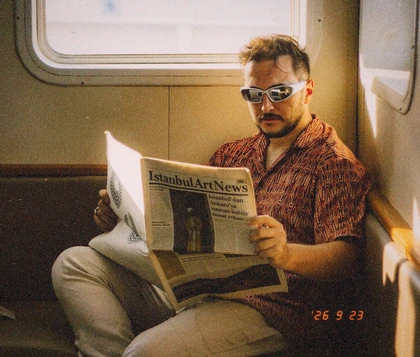
A convincing vintage photo effect starts with more than a yellow tint. OldRoll's team studies photographs from physical cameras, then checks color, contrast and texture across different scenes. Begin with an instant-camera mood, a disposable-film snapshot or a quieter digital style. As a vintage photo maker, OldRoll lets you try these directions on your image and choose the one that fits its light and story.

Adjust grain color and light in the OldRoll editor

Make Grain, Color and Light Your Own

One click establishes a retro photo effect; the next edits are yours. Change Intensity, pick a Grain type, and adjust its strength and particle size. Vignette, Highlights, Shadows and Curves help shape a faded or contrast-rich finish. For a 90s vintage camera effect, choose a Light Leak type and strength or edit the orange date stamp. Texture gives the surface character, light creates depth, and color sets the mood.

Try free vintage looks on the same photo

Create Retro Effect Online for Free

OldRoll's current Web features are free to use, with no account or credit card required to begin. Open a photo in your browser and try an instant-print mood, an older film palette or a flash-heavy snapshot. This retro photo editor lets you compare looks on the same image. Start with one picture, choose a Camera or Filter look, and use the controls that matter to that picture. Keep the process simple or spend more time shaping the details.

Save a vintage photo in its original resolution

Save the Detail You Started With

A retro photo filter can change the mood without forcing a smaller export. OldRoll saves the image in its original resolution, without extra export compression or an added watermark. Check faces, grain and highlights at full size before saving. Use the result for a social post, a digital album or a design layout. Your photo keeps the vintage look you chose and its original dimensions when you export it.

Where Does a Retro Photo Look Work Best?

The best filter depends on the light and story already in the frame. A travel landscape can take a gentle, sun-faded treatment; a party portrait may need brighter flash contrast. Match the style to the scene before turning up its strength.

Make social photos share a gentle vintage color direction

Give outfit photos, café corners and mirror selfies a consistent visual thread without making every post identical. A vintage photo editor can keep warm skin and soft grain across a carousel, while a cooler retro camera filter gives sharper fashion details a different edge. Choose the same broad color direction for the set, then refine each photo.

How to Make Photos Look Vintage with OldRoll

  1. Step 1: Upload Your Photo

    Choose a portrait, travel shot, party photo or everyday image from your device. Start with a picture whose light and subject can guide the vintage direction.

  2. Step 2: Choose a Style and Refine It

    Select a Camera or Filter look, then set its Intensity. Use Grain, color, light or a frame only where those details help your photo feel more complete.

  3. Step 3: Compare and Download

    Compare your edit with the original and inspect the subject, highlights and texture. Save the finished picture in its original resolution on your device.

Follow three steps to create and save a vintage photo

How Does OldRoll Compare with Other Vintage Editors?

OldRoll pairs free, camera-inspired looks with original-resolution export, so you can choose, refine and save in one browser workflow. Compare price, watermarks, presets, export quality and account requirements before picking an editor.

Swipe to compare all editors

FeatureOldRollCanva / PicsartVSCO Web
Price100% freeFreemium, with paid featuresLimited free trials
WatermarkNo added watermarkWatermarks on Pro contentLogin or subscription requirements
Camera aestheticsFilm- and CCD-inspired looksGeneral color filtersPresets behind a paywall
Export qualityOriginal-resolution downloadCompression in the free tierMobile sync restrictions
Account to beginNone requiredSignup requiredAccount required

What Makes a Vintage Edit Feel Personal?

From quiet film grain to direct-flash snapshots, creators use OldRoll to choose a vintage direction and tune it to the people, places and light in their own photos.

Avery M.

"I tried a few looks on the same road-trip photo. The softer film color suited the sunset, and a little Grain made it feel like a memory without washing out the sky."

Jordan T.

"The 90s direction worked well on our party picture. I kept the brighter faces and darker background, then lowered the Intensity so the edit still felt like our night."

Morgan L.

"I started with an instant-style look for a family portrait. The warmer color and paper-frame mood were lovely; I preferred the Grain quite light on faces."

Riley S.

"I liked being able to compare warm film color with an early digital look. They told completely different stories with the same photo."

Casey R.

"The old picture filter direction gave my café photos a softer finish. Adjusting Highlights kept the window light gentle while the cups and faces stayed clear."

Taylor B.

"A stronger Light Leak was too much for my street portrait. Choosing another type and lowering its strength gave the scene just enough character."

Jamie K.

"My outfit photo suited cooler digital color more than warm film. Having several vintage styles in one editor made that choice much easier."

Alex P.

"I used the old photo filter look for a birthday album. Fine grain and a restrained Vignette made the newer pictures sit comfortably beside older prints."

Sam D.

"The controls made a difference on a night photo. I could brighten my friends, deepen the background and keep the retro photo effect from becoming too flat."

Quinn F.

"I wanted a vintage photo maker for a travel layout. Saving at the original resolution let me use the finished image at the size I planned."

FAQs About Vintage Filters

What is the difference between a retro filter and a vintage filter?

Both describe looks that refer to an earlier visual era. A vintage filter often draws on older photographic materials such as film, instant prints and paper frames. A retro filter can also reference later technologies, including compact digital cameras and VHS-era imagery. The useful distinction is the result you want: warm print color, grainy film, a direct-flash snapshot or cool early-digital tones.

How do I choose a vintage photo filter for my picture?

Begin with the light and subject. Warm instant-film color can suit a gentle portrait or road trip; a 90s disposable-camera look gives party photos brighter subjects and stronger contrast; cooler digital color can suit an outfit or night scene. Try more than one treatment on the same image, then adjust Intensity so the effect supports the photo. The right photo vintage filter should have a specific visual reason to be there.

Can I make a photo look old without losing image resolution?

Yes. An old photo filter changes color, light and texture; OldRoll can save the edited picture in its original resolution without extra export compression. The applied look may intentionally soften detail or add grain, so inspect faces, text and highlights at full size before downloading. Original resolution describes the export dimensions, not an untouched copy of the original pixels.

Can I adjust grain, fading and a date stamp separately?

You can select a Grain type and adjust its strength and particle size. Intensity changes the overall Camera or Filter look; Light, Color, Curves and Vignette help shape a faded finish. Light Leak offers a choice of type and intensity, and OldRoll's orange date stamp has editable numbers. Together, these controls let you tune the look without treating every vintage photo the same way.

Is OldRoll a free vintage photo editor online?

Yes. The current OldRoll Web editing features are free. Upload a photo, try Camera or Filter looks and make optional adjustments in your browser. You can compare the result with the original before saving. Start with one ready-made style and refine only the details that make the picture feel like yours.

How does a vintage photo effect differ from a vintage camera effect?

A vintage photo effect describes what you see in the finished picture, such as faded color, grain or softer highlights. A vintage camera effect also points to the character of a particular kind of camera or era, from instant prints to disposable snapshots or early digital images. OldRoll offers Camera and Filter looks for these directions, with further controls for the light, color and texture of your photo.

Find More Ways to Shape Your Photo