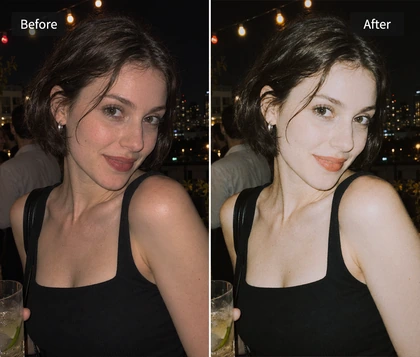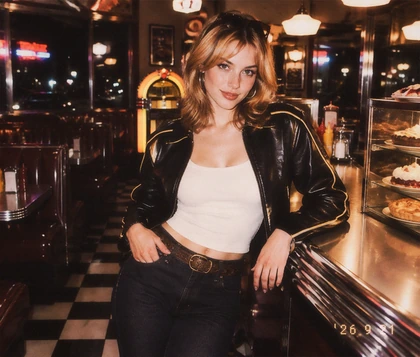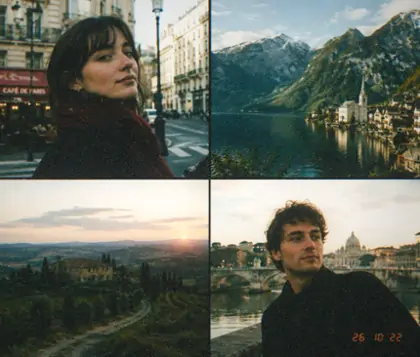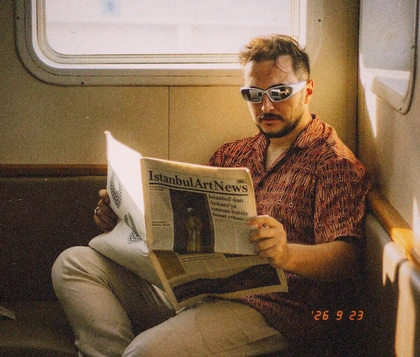
Why Choose OldRoll for Your VHS Photo Edits?

Turn modern photos into retro keepsakes with OldRoll's DCR camera effect. Refine the result with simple adjustments, try optional glitch styles, and save your finished photo for free without a watermark.

Family portrait before the VHS photo effect
Give a family portrait a soft retro camcorder look
BeforeAfter

Give Your Photos a 90s Camcorder Look

The DCR camcorder filter gives modern photos a 90s camera look. Soft texture and faded tones give photos a vintage look. By default, DCR crops the photo to a preset aspect ratio and adds a camcorder-style frame with screen text. Choose None under Paper to remove the frame and keep your photo’s original composition, provided you haven’t cropped it yourself. Warm indoor portraits and relaxed family snapshots suit this treatment, bringing nostalgic warmth to everyday moments.

Refine a VHS photo with exposure blur and grain adjustments

Personalize Your VHS Photo with Simple Controls

Create a photo that reflects your personal style with sliders for fine adjustments. Adjust Exposure to brighten a dim portrait, balance Blur for softer edges, or add grain to your photo for a more textured finish. Small changes help you keep faces readable, while stronger adjustments create a bolder lo-fi mood. Follow the preview to shape the result without Photoshop skills or a complicated editing workflow.

Explore five optional glitch styles for a VHS photo

Explore Multiple Glitch Styles for Your Photos

Optional glitch effects add a distinctive touch of visual distortion to your VHS photo, with multiple styles to explore, including VHS Static, Tape Tracking, Digital Slice, and more. Turn a party snapshot into a rough retro keepsake, give an analog horror still an unsettling edge, or bring a disrupted look to music artwork. Leave the effect off for a cleaner camcorder look, or choose a glitch style that brings out the mood of your photo.

Save a VHS portrait without a watermark

Free Online Export Without Watermarks

Your retro photo is ready to save for free, with no watermark on the image and no export fee. OldRoll saves your image at its original resolution with no additional export compression, retaining the detail available in your source along with the lo-fi treatment you chose. From a family keepsake to an artist portrait, your edit is ready to save or share with the full composition visible and no logo covering the picture.

Two Ways to Create Your VHS Photo Effect

Choose the DCR camera preset for a ready-made VHS photo look, then explore five optional styles in Glitch Effects within the Adjust panel for extra distortion. Fine-tune the result with Grain, Blur, and Dispersion to shape your own lo-fi finish.

Apply the DCR camera effect to a casual photo

Apply a VHS Camera Filter

For an instant VHS photo effect, choose DCR in Camera and apply its ready-made look. This route gives everyday portraits and photos with friends a retro camcorder style without building a combination of effects from scratch. Faded color and softened detail suit warm indoor lighting, casual expressions, and family gatherings. Pick the camera effect when you want a quick, consistent starting point for your nostalgic photo.

Choose an optional glitch style for a DCR photo

Add Optional Glitch Effects to Your Photo

Give your photo a distinctive distorted finish with Glitch Effects in the Adjust panel. Explore five styles, including VHS Static, Tape Tracking, and Digital Slice, comparing each result in the preview. Pick a style that suits your subject, from a disrupted party snapshot to an eerie portrait or music artwork. Choose None for a cleaner finish, then refine exposure or blur to balance the result.

Combine Grain Blur and Dispersion for a lo-fi photo look

Customize Your VHS Photo Effect

Create a unique VHS-inspired look by combining three effects: - Grain: Add grain and noise for the rough texture of an old recording. - Blur: Soften sharp digital edges to give the image a lower-fidelity feel. - Dispersion: Offset color edges with red and blue fringing for a distorted, analog-inspired look. The combination creates a VHS-inspired lo-fi style, with texture and color edges you control.

Where Can You Use a VHS Photo Effect Online?

Different photos bring out different sides of a VHS-inspired look. Neon-lit portraits, streetwear shots, quiet interiors, and family snapshots offer room to explore texture, soft detail, and faded color.

Give a neon-lit party photo a VHS nightlife look

Party snapshots gain the loose, unpolished feel of a 90s night-out tape. Grain and blur soften harsh digital detail, while RGB fringing plays against neon signs and colored stage lights. Bright faces against a darker room keep friends at the center of a lively, imperfect memory.

What Creators Say About OldRoll VHS Photos

From grainy party snapshots to soft family memories and distorted music artwork, see how different VHS treatments can shape a photo.

Maya

"I kept the grain low on a birthday photo. The softer detail feels like a frame from a family tape, and I can still recognize every smile."

Ethan

"The neon in my night-out shots looks great with a little RGB fringing. I like being able to dial it back when the edges start to distract."

Lena

"My outfit photo needed a softer finish. A little blur took away the crisp digital edge while leaving the clothes and chrome accessories easy to see."

Noah

"An empty hallway became the image I wanted for a horror photo set. More blur and grain made the scene feel like an old recording I had found."

Chloe

"Our skatepark photo had the right energy but looked too clean. The DCR camera effect gave it a worn feel that suited the clothes and concrete backdrop."

Oliver

"Being able to balance the blur and color separation on one portrait helps. I can work toward my own finish instead of settling for a fixed effect."

Sofia

"I use the watermark-free download for artist portraits that go with my music posts. The VHS texture fits the mood without a logo across the image."

Isabel

"A lighter treatment worked best on our road-trip photos. The faded colors bring back the feeling of a home movie without hiding our expressions."

Avery

"My first close-up selfie had too much grain. Lowering the amount made facial details easier to see while leaving enough texture for the worn look I wanted."

Ruby

"Strong color separation competed with my cover lettering at first. A smaller amount suited the artwork better and still gave it that tape-era character."

Frequently Asked Questions About VHS Filters

Can I customize the grain and blur effects on OldRoll?

Yes. After applying the VHS look, fine-tune the result with adjustments such as Exposure and Blur. You can also add grain, checking the preview to balance brightness and texture around your subject.

Can I add simulated glitch effects to my photo?

Yes. Open Glitch Effects in the Adjust panel to explore five styles, including VHS Static, Tape Tracking, and Digital Slice. Choose a style for a distorted retro look, or select None to leave glitch effects off.

Is the VHS filter suitable for creating an analog horror aesthetic?

A VHS-inspired photo effect can suit analog horror stills. Grain, Blur, and Dispersion help build a worn lo-fi style, while dim corridors, cold lighting, and shadowy portraits strengthen the unsettling atmosphere.

Is OldRoll's VHS filter free to use?

OldRoll's VHS photo filter is free to use online, including photo editing and watermark-free downloads. Try the DCR camera effect or shape a similar lo-fi photo style with a custom combination of effects.

Can I download VHS-filtered photos in HD without a watermark?

Yes. OldRoll lets you download your VHS-filtered photo at its original resolution without a watermark or additional export compression. Save your customized retro look for personal albums, artwork, or social photo posts.

Explore More Retro Photo Effects with OldRoll