Free CCD Filter Online for Y2K Digital Camera Photos

Give phone photos vivid color, clipped highlights, digital noise, and direct flash contrast inspired by early CCD cameras. OldRoll turns portraits, parties, and travel memories into Y2K snapshots online for free.

Free · No sign-up · No watermark

View a clean portrait before applying a CCD filter
Create a vivid Y2K portrait with CCD color and flash contrast
BeforeAfter
Compare color, highlights, noise, and compression in a CCD look

How Does OldRoll Recreate the CCD Camera Look?

  1. OldRoll gives red, blue, and green areas clearer separation to recreate the punchy color of early CCD cameras. Subtle hue shifts keep the result vivid without making every surface perfectly accurate in color, giving portraits, clothing, and skies a recognizable early digital character.

Why Use OldRoll for a CCD Camera Effect?

OldRoll turns the core CCD cues into an accessible editing flow. Start with a coherent filter, then adjust its strength and flash character, and change the time shown in the timestamp so the finished photo fits both the original lighting and the memory you want to evoke.

Create a portrait with CCD color and fine digital noise

Create CCD Hardware Texture in One Tap

Create a convincing CCD camera style finish with vintage color shifts, fine digital noise, and compressed tonal range working together. The result feels more like early camera hardware than a flat overlay while keeping the subject readable. Begin with a clear, evenly exposed photo, then adjust filter intensity to suit the scene.

Brighten a night portrait with natural CCD flash shadows

Recreate Natural Night Flash

Bring people forward in low light with a bright subject, darker surroundings, and natural looking flash shadows. For a believable direct flash result, photograph the person facing the camera in a dim setting, keep a comfortable distance, and avoid large reflective surfaces behind them.

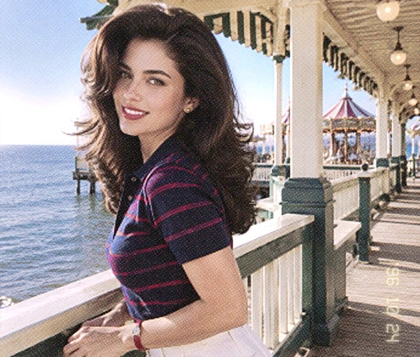
Add a custom CCD date stamp below a travel portrait

Customize the Photo Timestamp

Add a classic CCD style timestamp and set the date to match the story you want the photo to tell. A believable date can reconnect an image with a memory or support a themed edit. Place the stamp near the bottom edge so it feels authentic without covering a face or important detail.

Where Can You Use a CCD Filter?

CCD style works best when it supports the moment already in the frame. Explore four high use scenarios and see how direct flash, color, grain, timestamps, and exposure choices can make each set feel intentionally early digital.

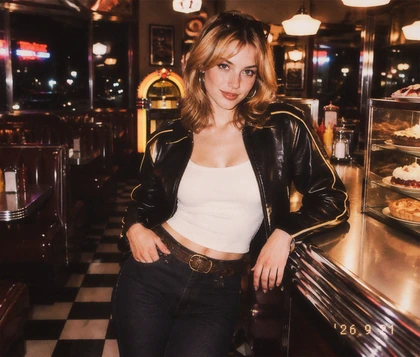
Capture a Y2K party portrait with direct-flash contrast

Give night party photos the bold energy of a Y2K compact camera with direct flash highlights, slight color shifts, and visible digital grain. Shoot in a darker room, face the flash toward the subject, and keep enough distance to separate the person from the background without severely overexposing the face.

How to Apply a CCD Filter to a Photo

  1. Step 1: Upload Your Photo

    Choose a clear portrait, party shot, outfit photo, or travel image from your device. Balanced exposure makes changes in CCD color, noise, and highlights easier to judge.

  2. Step 2: Apply and Adjust the CCD Filter

    Apply the CCD filter, then tune its intensity around the source photo. Review the color, contrast, grain, flash character, and timestamp before finalizing the look.

  3. Step 3: Export Your Photo

    Check the finished effect at full size and export the edited photo in HD. It is ready for social posts, digital albums, mood boards, or themed creative layouts.

Apply a CCD filter in three simple editing steps

Explore More Early Digital Photo Styles

Why Creators Use OldRoll for CCD Photos

Creators use OldRoll to give clean phone photos bolder early-digital color, convincing flash contrast, and nostalgic texture while keeping enough control to match portraits, outfits, parties, and travel memories.

Emily R.

"The flash look gave my party photos a bright subject and darker background without making every face look flat. The set finally had the casual Y2K energy I wanted."

Maya C.

"I used the cooler CCD color on a thrift-store outfit shoot. Keeping the grain subtle made the clothes stand out while the photos still felt like early fashion-blog snapshots."

Daniel K.

"Changing the timestamp pulled my road-trip pictures into one believable summer album. It was a small detail, but it made the whole set feel much more personal."

Sophie L.

"The preset gave me a strong starting point, though I lowered the intensity on daylight portraits. Once adjusted, the highlights and color looked much more natural for the scene."

Marcus T.

"The separated reds and blues made my concert shots feel instantly early digital. I liked that the effect had texture and contrast instead of looking like one color layer."

Olivia P.

"Low-light noise was the detail I had been missing in other filters. It gave dark café photos the rough compact-camera character I remembered without hiding the people."

Jordan A.

"I edited a full weekend photo dump with one CCD look and mixed portraits, food, streets, and tiny details. The consistent color made the carousel feel connected."

Noah B.

"The date stamp looked convincing after I moved it away from the subject. I would still compare a few intensity levels first, but the final nightlife photos felt surprisingly cohesive."

Chloe M.

"Warm highlights and light grain worked perfectly on our beach road trip. The photos stayed readable while gaining the glow and imperfect digital texture I wanted."

Ethan S.

"Uploading, adjusting the CCD look, and exporting in HD was straightforward. I could finish a themed set for social posts without building the effect control by control."

FAQs About the CCD Filter

How can I keep skin tones natural in a CCD edit?

Start with a photo that has neutral white balance, then lower the filter intensity if faces look too cool or red. Check skin before adding extra grain, since strong color shifts can make small blemishes more noticeable.

Why do white clothes lose fine detail after I apply the filter?

White fabric is likely sitting too close to the highlight limit. Reduce exposure or filter strength until folds return, then keep contrast moderate so the CCD look stays punchy without turning bright areas into flat white patches.

How should I edit CCD photos with glasses or mirrors?

Watch for bright reflections around lenses and mirrored surfaces. Choose a frame with smaller glare spots, then reduce highlights before applying the effect so reflections stay intentional instead of covering eyes or nearby details.

Should I crop before or after applying a CCD filter?

Crop first when the composition and aspect ratio are already decided; this lets you judge grain and edge details at the final framing. Crop afterward only if you want to compare several retro ratios before exporting.

How do I keep text and logos readable in CCD photos?

Keep grain and compression lighter around signs, clothing logos, or product labels. Start with a sharp source and avoid heavy downscaling, because fine letters can break apart faster than faces or large shapes.

What should I do if my source photo is already noisy or compressed?

Use a lighter CCD effect and avoid stacking extra grain or compression. If possible, start from the original camera file rather than a social-media download, since repeated compression can create blocky edges and muddy color.

How can I stop the CCD effect from looking artificial?

Adjust one element at a time and stop before every cue becomes equally strong. A believable edit usually keeps one signature trait prominent while grain, compression, and color shifts remain restrained.