
What Defines the Twilight Filter Aesthetic?
Vivid, icy cyan, deep forest green and cool gray define the palette. Subdued yellows and reds let the blue-green cast lead, with occasional warm accents standing out.

Give everyday photos the cold blue-green mood of Forks. OldRoll pairs movie-inspired color with adjustable tone and texture, bringing a Twilight blue filter look to forest walks, rainy outfits and selfies.
Free · No sign-up · No watermark


Vivid, icy cyan, deep forest green and cool gray define the palette. Subdued yellows and reds let the blue-green cast lead, with occasional warm accents standing out.
Get the signature blue-green atmosphere with a ready-made camera and filter pairing, then tailor it to your photo. OldRoll combines expressive color, detailed adjustments and free online editing.


Give your photos the movie-authentic blue-green mood that makes the first Twilight so recognizable. OldRoll’s carefully tuned camera and filter pairing brings cool cyan into daylight, deepens forest greens and quiets warm color. The result evokes the rain-soaked, overcast world of Forks, adding a stronger sense of story to an ordinary park portrait or cloudy street scene. Try it on soft daylight for a convincing starting point.

Tailor your Twilight photo filter to the light in your image with OldRoll’s Adjust controls. Temperature and Tint shape the overall blue-green balance, while HSL and Curves let you refine individual colors and tonal relationships. Ease back the blue on a close-up, or deepen cyan in a wide woodland scene. Add a little Blur for softer detail and adjust Grain for texture, building a finish that suits your photo and your take on the film.

Create the cyan look online for free with photos you already have. A blue acrylic keychain or colored lens accessory changes the light while you shoot, but OldRoll lets you shape the color afterward on a phone or computer. Compare a subtle cast with a deeper Twilight movie filter finish in your browser. Download at the original resolution without a watermark or extra export compression, ready for your next photo post.

OldRoll's preset pairing combines the TOY K camera style with the 135C filter to recreate cool blue-green Twilight photo tones. You can also tailor the look to your photo using the Adjust controls. Try these starting ranges: • Temperature: -35 to -15. • Tint: -15 to -5. • Exposure: -15 to -5. • Contrast: -15 to -5. • Shadows: +5 to +15. • Vignette: +5 to +15. • Color → Curves: select G, then B. Gently drag a midpoint upward on each curve to add green and blue. Adjust by eye for your photo and check skin tones. Lift Shadows for dark detail, and use Vignette to darken edges. For a closer match, use HSL to refine skin and foliage, with light Grain or Blur for a softer finish.
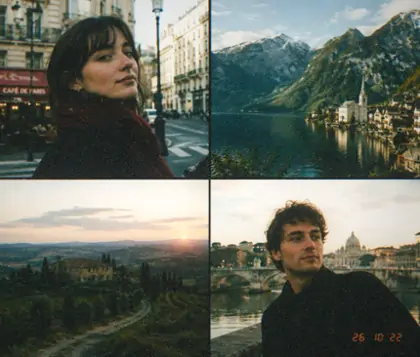
Build the look around your own setting, from green woodland to a rainy outfit shot. Cool color and a softer finish connect these four photo ideas to the world of Forks and late-2000s nostalgia.

Give park paths, woodland portraits and mountain roads a Forks-inspired atmosphere with cool cyan and deep green. Soft daylight or an overcast sky makes a useful base for the Twilight filter. Leave detail in bark and leaves, so the darker palette adds mystery while the setting still feels real.
Open OldRoll online and add a photo from your phone or computer. A forest scene, cloudy portrait or rainy-day outfit gives the cool palette room to work.
Choose Camera → TOY K, then layer Filter → 135C. Adjust filter intensity, Temperature, Tint or HSL, and add a little Grain or Blur to suit your photo.
Save your finished photo in HD at its original resolution, without a watermark or extra export compression. Download it to your device for sharing or saving.

A rainy outfit, a woodland portrait and a throwback selfie call for different amounts of blue. These photo stories explore color balance, soft texture and the small choices behind each edit.
Emma R.
“My local park already had the right trees. The cooler greens made that ordinary walking photo feel like a scene from the first Twilight movie.”
Noah T.
“I wanted the blue cast for an outfit post, but my jacket still needed to look brown. A smaller Tint adjustment gave me a balance I liked.”
Sofia M.
“The browser option was handy for an old selfie on my laptop. I added a little grain and got the moody 2008 profile-picture feeling I was after.”
Liam K.
“My cloudy hiking shot was a good fit for this. I lowered the contrast slightly, then lifted the shadows so I could still see the path under the trees.”
Chloe W.
“I went too blue on my close-up at first. Reducing the filter strength helped, and a small temperature change gave me the colder portrait I wanted.”
Oliver B.
“I had been trying a blue keychain in front of my phone. Editing a photo afterward gave me more room to decide how much of that cyan look I wanted.”
Maya S.
“A dark coat and wet pavement did most of the styling in my shot. The cool color tied them together without needing a new background for the photo.”
Ethan P.
“Too much blur made my forest shot look muddy. I used just a little in the end, with light grain, and the leaves still had the detail I liked.”
Grace L.
“This worked for a vampire costume portrait I had already taken. The colder background suited the makeup, and I liked being able to save it without a watermark.”
Lucas D.
“I made the edit on my phone after a rainy walk. It took a few adjustments to the shadows, but I liked the quiet blue-green finish on the final photo.”
The Twilight filter recreates the cool blue-green color associated with the first film from 2008. Cyan skies, forest greens and muted warmth create the overcast, melancholy mood linked with Forks, Washington.
Use OldRoll in your browser, choose Camera → TOY K and layer Filter → 135C. Refine the strength and color for your image. This Twilight filter online works with existing photos on a phone or computer.
Lower the filter intensity or bring Temperature a little closer to neutral. Use HSL to refine skin-related colors and compare with the original. Aim for a cool portrait while leaving facial detail visible.
No. OldRoll applies the color to an existing photo, so you do not need a blue acrylic keychain or colored camera lens. You can revisit the blue-green balance after the shot and suit it to the original light.
Treat the suggested ranges as starting points. A sunny selfie and a shaded forest need different color and exposure adjustments. In Twilight editing, judge the face and darkest areas before adding more blue.
Yes. Apply the Twilight filter online for free and download at the original resolution, without a watermark or extra export compression. HD detail depends on the image you start with, so use a clear source photo.
Y2K Photo Editor
Turn modern photos into adjustable 2000s edits with digicam flash, grain, stickers, retro text and date details.
Dreamy Filter
Add soft bloom, gentle haze, film grain, and adjustable warmth while keeping important photo details clear.

Film Filter
Add film-stock-inspired color, adjustable grain, light effects and date details to digital photos online for free.
Vintage Filter
Explore film, instant-camera, 90s and Y2K looks, refine grain and color, then save in original resolution.
CCD Filter
Give photos vivid early-digital color, direct-flash contrast, electronic grain, and a custom timestamp with OldRoll.
Disposable Camera Filter
Create retro film photos with grain, light leaks, and optional date stamps. Try presets and download for free.